Configuring appearance / performance settings
ChartRenderOptions (RenderOptions in WinForms) contain properties for configuring appearance and performance.
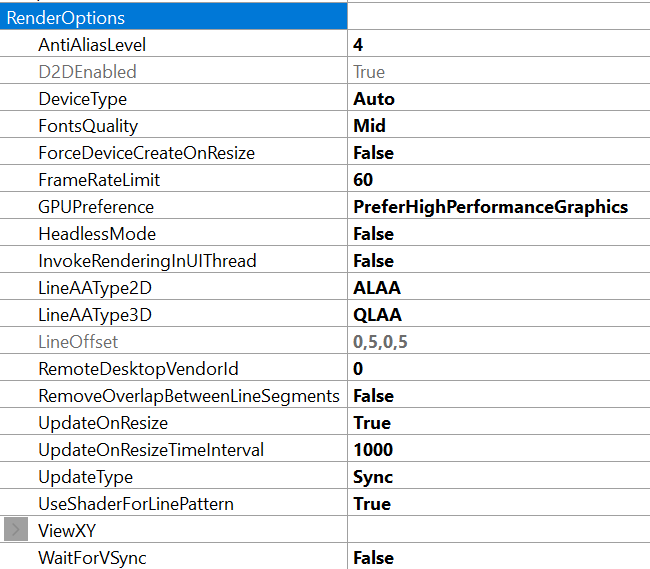
RenderOptions properties
DeviceType
DeviceType property controls which rendering device is used.
// Changing the rendering device in code
chart.ChartRenderOptions.DeviceType = RendererDeviceType.Auto;
DeviceType has the following options available:
Auto is an alias to AutoPreferD11 option. This is the default setting.
AutoPreferD9 prefers DirectX9 hardware rendering, and automatically selects device in this order: HW9 -> HW11 -> SW11 -> SW9 based on availability. Falls back to WARP (SW11) software rendering when hardware is not available.
AutoPreferD11 prefers DirectX11 hardware rendering, and automatically selects device in this order: HW11 -> HW9 -> SW11 -> SW9 based on availability. Falls back to WARP (SW11) software rendering when hardware is not available. Use this as a general high-performance and best appearance setting. Visual appearance is better than with DirectX9 renderer.
HardwareOnlyD9 uses hardware 9 rendering only.
HardwareOnlyD11 uses hardware 11 rendering only.
SoftwareOnlyD11 uses DirectX11 WARP (very fast when compared to DirectX9 reference rasterizer, but slower than hardware options)
SoftwareOnlyD9 uses DirectX9 reference rasterizer (very slow).
None if chart is hidden, or inactive in background, setting DeviceType to None will free graphics resources to other charts.
GPUPreference
A selection applicable to machines with dual graphics adapter systems, mainly laptops having integrated low-performance Graphics Processing Unit (GPU) in the CPU/chipset, and higher performance graphics GPU (e.g. AMD or Nvidia).
chart.ChartRenderOptions.GPUPreference = GPUPreference.SystemSetting;
GPUPreference has the following options available:
SystemSetting uses options selected in the graphics settings of Windows, or AMD / Nvidia control panel.
PreferHighPerformanceGraphics (Default) uses high-performance GPU if it exists in the system. Gives better performance in general but may lead into higher energy consumption.
PreferLowPowerGraphics uses slower integrated GPU, even if high-performance GPU has been installed on the system.
By default, PreferHighPerformanceGraphics is the preferred option. Keep it selected to get the best performance.
FontsQuality
chart.ChartRenderOptions.FontsQuality = FontsRenderingQuality.High;
FontsQuality has the following options available:
Low gives best performance, the fonts are not anti-aliased. Select font typeface carefully to get acceptable appearance.
Mid gives almost similar performance than Low. Has simple anti-aliasing around the fonts. This is the default setting.
High gives best appearance but has a significant performance hit.
Transparent background is not applicable for DirectX 11 rendering with High quality setting. For DirectX9 it works. This is a rendering technology limitation.
AntiAliasLevel
chart.ChartRenderOptions.AntiAliasLevel = 1;
The overall scene anti-aliasing factor. Availability depends on the hardware. Higher values give better appearance, but with reduced performance. Set 0 or 1 to maximize the performance. See for more information on available anti-aliasing settings.
LineAAType2D / LineAAType3D
Anti-aliasing type of single pixel width anti-aliased lines. Applicable only on DX11 and when AntiAliasLevel is above 1. Lines thicker than 1 pixel are rendered using triangles, and use triangle drawing AA system. ALAA option produces generally best looking line and is faster than QLAA. There is some problems with ALAA with Warp though. For example,
chart.ChartRenderOptions.LineAAType2D = LineAntiAliasingType.ALAA;
WaitForVSync
chart.ChartRenderOptions.WaitForVSync = true;
Recommendation: keep as default value (False). When enabled, holds rendering until display's next refresh is taking place (e.g. next multiple of 1/60 s). Only recommended temporarily e.g. when synchronization with external screen capture application is used to prevent striping, or when image on the screen in top of the screen is not in sync with bottom of the screen. It may show as broken waveform data. Significant performance hit when enabled, especially in WPF.
UpdateType
chart.ChartRenderOptions.UpdateType = ChartUpdateTypes.Sync;
UpdateType has the following options available:
Sync (default): Chart is updated synchronously. Chart gets updated either after the last EndUpdate() call, or when setting a property (or calling a method) causes some changes in the Chart. Property change (without BeginUpdate…EndUpdate) leads to immediate new frame rendering.
Async: Chart is updated on async fashion. The chart will update as fast as possible after property changes, but chart will render a new frame at some later point. This might make it easier to use the chart on some cases.
LimitedFrameRate: Frame rate is limited to value specified in FrameRateLimit property. 0 = unlimited. E.g. if max. 10 refreshes / second is wanted, set 10. This is similar to the Async option but prevents new frames from being rendered right after first one, thus reducing framerate, but sparing system resources.
Ensure correct thread handling also in LimitedFrameRate and Async modes. If the chart updates asynchronously, and chart properties are updated at the same time, a conflict may occur and crash the chart or application.
InvokeRenderingInUIThread
chart.ChartRenderOptions.InvokeRenderingInUIThread = true;
When using a background thread in the application, all UI updates from the thread must go through Invoke (Control.Invoke() in WinForms, and Dispatcher.Invoke() in WPF).
The rendering part will use internal Invoke to UI thread, when enabled.
The default value is False, as setting properties and calling methods in a thread-safe way should also be take care of, even when this property is enabled, to prevent thread collision in internal states of the chart.
HeadlessMode
chart.ChartRenderOptions.HeadlessMode = true;
Setting this to True allows using the chart in a background service, console application or other application without user interface. See more Headless mode description.
UseShaderForLinePattern
From version 12.4 shaders are used to render 1 px wide pattern line not only for XY axis grid, but also wireframe of IntensityGridSeries, angular grid of polar axis, LineSeriesCursor, ConstantLine, DataCursor, Annotation border and similar. There is several fold increase in chart refresh rate when patterned wireframe is drawn with shader.
However, it should be noted that some older graphic drivers may not work well with patterns created by shaders. In those cases, user can fallback to creation on CPU of line draw-data (as was before v12). This is done by disabling UseShaderForLinePattern property.
FallbackWpfImagePresentation
Forces DX11 rendering on WPF to fallback to the presentation system without D3DImage. In some cases (when D3DImage creation fails), LightningChart will switch to fallback system automatically, although ChartMessage event will be raised as well. The fallback system can be switched on/off with FallbackWpfImagePresentation property (WPF edition only). Note that FallbackWpfImagePresentation property is moved from chart Options to ChartRenderOptions in version 12.5.
RemoveOverlapBetweenLineSegments
From version 12.6 new RemoveOverlapBetweenLineSegments property is added. It controls how the overlap adjacent line segments (of line-series, or border of Polygons/Maps) are rendered. By enabling property semitransparent line will become more homogeneous and nicer.
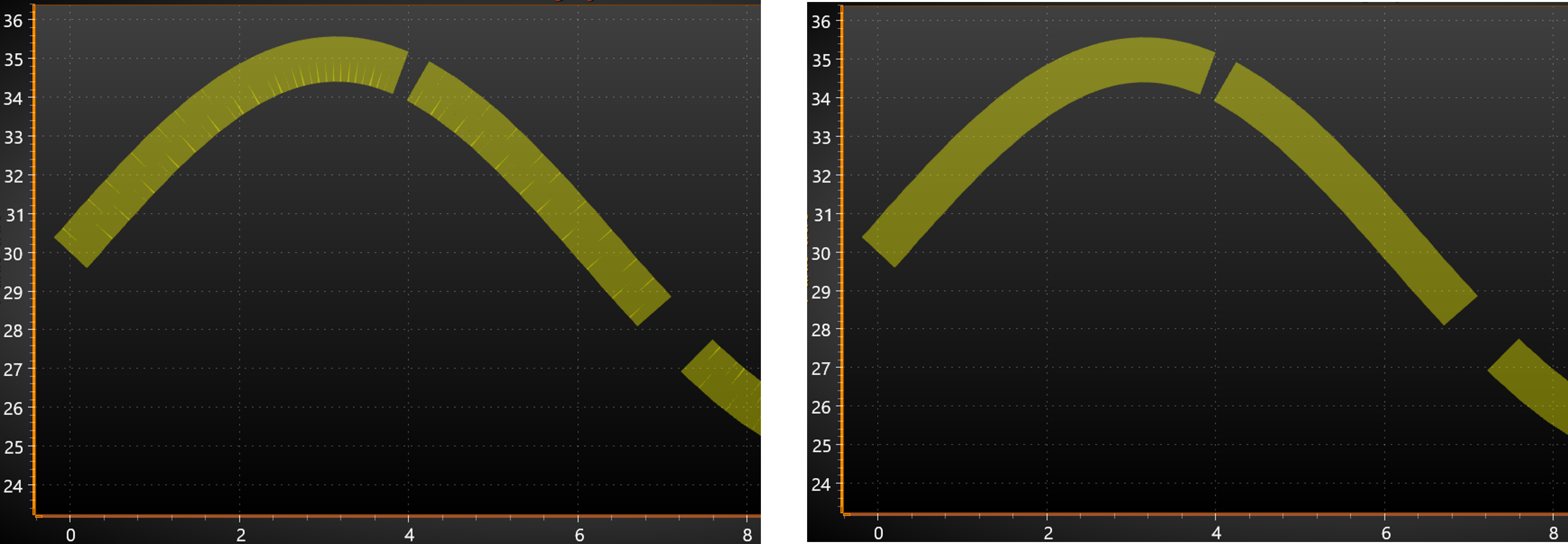
Thick (50px) semitransparent line with DataBreaking. On the left RemoveOverlapBetweenLineSegments is disabled (default), on the right - enabled.
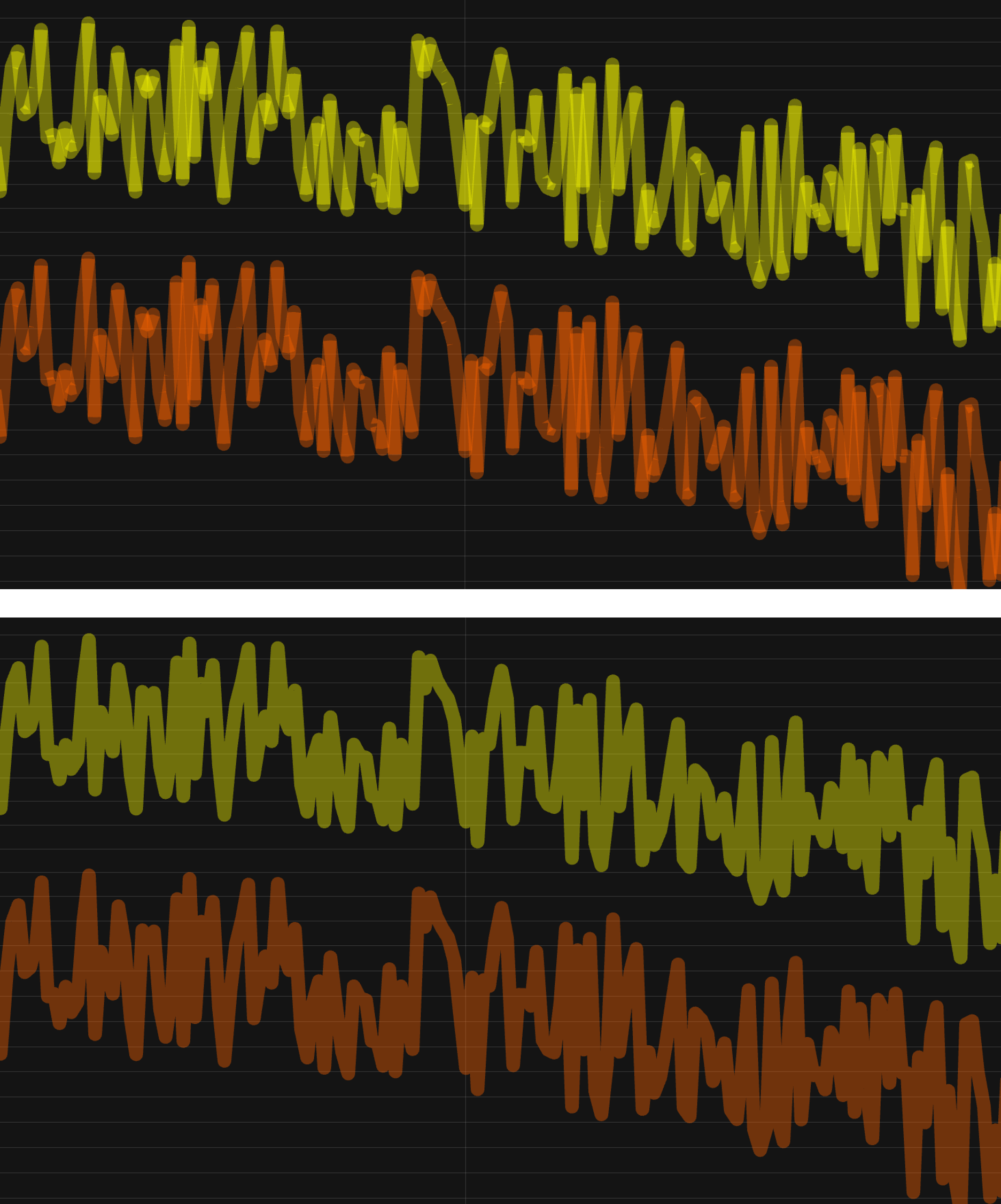
Continuous line made up of steep segments. Top, RemoveOverlapBetweenLineSegments disabled (old behavior) and at the bottom - enabled.